Excel Add-in User Guide
Step-by-step instructions for Silkview Connect — from sign-in through pull, build, and push to Xero.
Create your account at silkview.org, install the Excel add-in from the Microsoft Office Add-ins store, then sign in from the task pane and follow the steps below.
Open Excel and go to the Insert tab → Get Add-ins (on Excel for the web: Add-ins → More Add-ins). Search for Silkview Connect, then click Add or Install. You can also open the listing in Microsoft marketplace.
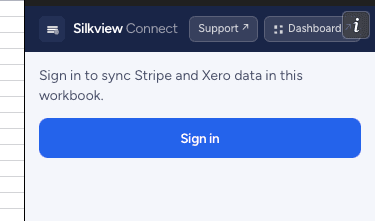
Click the Silkview Connect button on the Home ribbon, or launch the add-in from the Excel Insert tab. The task pane opens on the right side of Excel and shows the sign-in screen with Stripe and Xero prerequisites.
Click Sign in with Silkview in the task pane. A browser window opens to silkview.org/auth/login. Sign in with your credentials, or click Create a free account if you are new. After sign-in, return to Excel — the task pane updates automatically.
New accounts are redirected to the web dashboard to name your account and create your first workspace. Once done, return to Excel. Your workspace will appear in the dropdown.
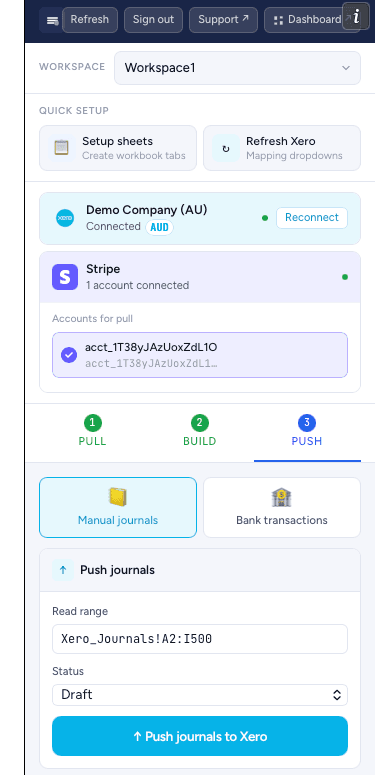
If your account has multiple workspaces, use the Workspace dropdown at the top of the task pane to choose which one you are working in. Each workspace has its own Xero and Stripe connections.
Connections are per workspace. Each workspace links exactly one Xero organisation and one or more Stripe accounts. If you manage multiple clients, create a separate workspace per client.
Connecting Xero
In the connections section of the task pane, click Connect to Xero. A browser dialog opens and redirects you to Xero's authorisation page.
Sign in to Xero if prompted, then select the organisation you want to connect and click Allow access. Silkview Connect requests read access to settings and accounts and write access to transactions only — it cannot modify your Xero settings or access unrelated data.
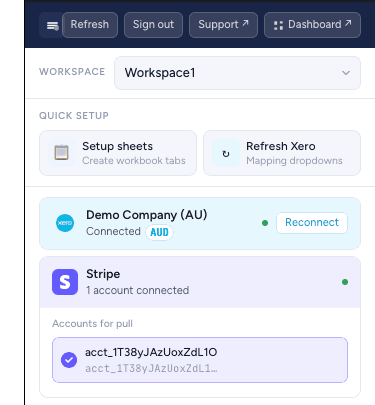
Return to Excel. The Xero connection card now shows your organisation name (e.g. Demo Company (AU)), a green connected indicator, and your base currency (e.g. AUD). All pulls and builds use this currency.
Connecting Stripe
In the Stripe connection card, click Connect Stripe. A browser dialog opens and redirects you to Stripe's OAuth Connect page.
Choose the Stripe account to connect and click Connect. Silkview Connect requests read-only access — it cannot move funds, create charges, or modify your Stripe account.
On the Firm plan you can connect multiple Stripe accounts per workspace. Click + Add another account beneath the accounts list and repeat the connect flow. Each new account appears as a checkable row under Accounts for pull.
Live vs test mode: Stripe accounts connected in test mode are labelled Test in orange. Data from test accounts is real test data only — do not push test-mode data to a live Xero organisation. Use a separate test workspace for development.
Managing connections from the dashboard
Connections can also be managed from the web dashboard at silkview.org. After making changes in the dashboard (reconnecting Xero, adding a Stripe account), return to Excel and click Refresh in the add-in header to reload the latest connection state without restarting Excel.
Step 1 — Set up sheets
Click Setup sheets under Quick setup in the task pane. This creates the following sheets in your workbook if they don't already exist:
| Sheet | Purpose | Written by |
|---|---|---|
| Stripe_Balance_Transactions | Raw Stripe balance transaction data | Pull tab (add-in) |
| Stripe_Payouts | Stripe payout summaries | Pull tab (add-in) |
| Stripe_Balance_Trx_Payouts | Balance transactions filtered to payouts only | Pull tab (add-in) |
| Stripe_Charges | Charge-level detail | Pull tab (add-in) |
| Xero_Journals | Manual journal rows ready to push | Build tab (add-in) + you |
| Xero_Bank_Transaction | Bank transaction rows ready to push | Build tab (add-in) + you |
| Account_Mappings | Your GL account codes, tax types and bank-transfer contact | You (Xero dropdowns populated by add-in) |
You can rename or reorganise sheets as long as you update the Destination field in the Pull tab and the Read range field in the Push tab to match. The add-in does not hard-code sheet names — it reads whatever range you specify.
Step 2 — Refresh Xero account dropdowns
Click Refresh Xero under Quick setup. This fetches your Xero chart of accounts, tax rates, tracking categories, and contacts, then populates dropdown lists on the Account_Mappings sheet. You must do this after first connecting Xero, and again after adding new accounts, tracking options, or contacts in Xero.
Step 3 — Configure Account_Mappings
The Account_Mappings sheet has two sections — an Account Mapping block at the top and a Contact Mapping block below. Both control how Stripe transactions translate into Xero entries. Configure each cell once and the values are referenced by formula in every future Build.
Section A — Account Mapping (rows 1–7)
| Stripe Object | Xero Account Code | Xero Tax Type | Xero Tracking Name | Xero Tracking Option |
|---|---|---|---|---|
| charge | 200 — Sales | OUTPUT2 (GST on income) | (optional) | (optional) |
| refund | 200 — Sales | OUTPUT2 (GST on income) | (optional) | (optional) |
| fee | 404 — Bank Charges | NONE (no GST on bank fees) | (optional) | (optional) |
| stripe_clearing | 855 — Stripe Clearing | NONE | (optional) | (optional) |
| stripe_payout_bank | 120 — Business Cheque (bank accounts only) | NONE | (optional) | (optional) |
Section B — Contact Mapping (rows 9–11)
| Xero Contact | |
|---|---|
| Bank Transfer Contact | Stripe Payments Australia Pty Ltd |
Clearing account is required. You must set up a Stripe Clearing Account in your Xero chart of accounts (a current asset account, not a bank account) and map it to the stripe_clearing row. This account temporarily holds Stripe revenue until the net payout arrives at your bank. See the Accounting treatment section for a full explanation.
The stripe_payout_bank row's dropdown is filtered to bank accounts only, while every other row pulls from the journal/GL account list. The contact cell in row 11 (B11) is referenced by every bank transaction the Build step generates.
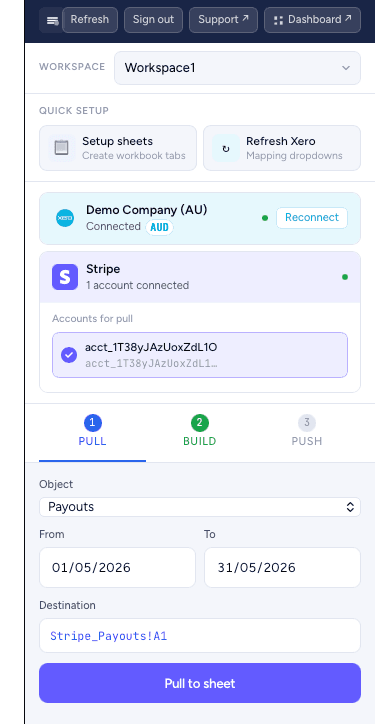
Click the Pull tab (step 1) in the task pane.
In the Stripe connection card above the tabs, tick the accounts you want to include under Accounts for pull. When multiple accounts are selected, each is pulled separately then merged and sorted by date in the destination sheet.
Select the Stripe data type to pull. The available options are Payouts, Balance Transactions, Balance Transaction Payouts, and Charges. For the standard reconciliation workflow, use Balance Transactions — this includes charges, refunds, and fees in a single unified list.
Enter From and To dates. The maximum range per pull is 90 days. For month-end processing, set From to the first day of the month and To to the last day. The date filter uses the transaction created date, not the payout arrival date.
The Destination field defaults to <Sheet>!A1 for the selected object (for example Stripe_Payouts!A1 or Stripe_Balance_Transactions!A1). The pull overwrites from the starting cell — headers go on row 1, data from row 2. Existing data is replaced entirely on each pull.
The add-in fetches data from Stripe and writes it to Excel. The row count and destination are confirmed in a green result bar below the button. Free plan: 100 rows total per pull, capped at 90 days. Pro / Firm plans: 2,000 rows total per pull, accounts merged and sorted by date.
Currency filter. On Pro/Firm, Silkview Connect filters Stripe transactions to your Xero organisation's base currency (e.g. AUD). On Free, all Stripe currencies are returned. Multi-currency support in the push step is limited in v1.
What gets written to the sheet
Each Pull object writes to its own sheet. The column layouts below match the live add-in (column A is the leftmost cell written by the pull).
Stripe_Balance_Transactions (13 columns, A–M)
| Col | Header | Notes |
|---|---|---|
| A | Stripe Account ID | Source connection (e.g. acct_1Sv…) |
| B | Stripe Account Name | Friendly account label |
| C | Transaction ID | txn_… |
| D | Created | UTC → local date |
| E | Available On | Date the funds become payable |
| F | Amount | Signed (negative for refunds, fees, payouts) |
| G | Fee | Stripe fee component |
| H | Net | Amount minus fee |
| I | Currency | Lower-case ISO (aud, usd, …) |
| J | Type | charge, refund, payout, stripe_fee, … |
| K | Reporting Category | Stripe's reporting bucket |
| L | Description | Free-form text from the source object |
| M | Source ID | Underlying charge, refund or payout ID |
Stripe_Payouts (11 columns, A–K)
| Col | Header | Notes |
|---|---|---|
| A | Stripe Account ID | Source connection |
| B | Stripe Account Name | Friendly account label |
| C | Payout ID | po_… |
| D | Arrival Date | Date funds hit your bank |
| E | Gross Amount | Total of charges in the payout |
| F | Fee Amount | Total Stripe fees in the payout |
| G | Net Amount | What lands in your bank |
| H | Currency | Lower-case ISO |
| I | Status | paid, in_transit, … |
| J | Description | From Stripe |
| K | Bank Account Last4 | Last 4 digits of the destination bank account |
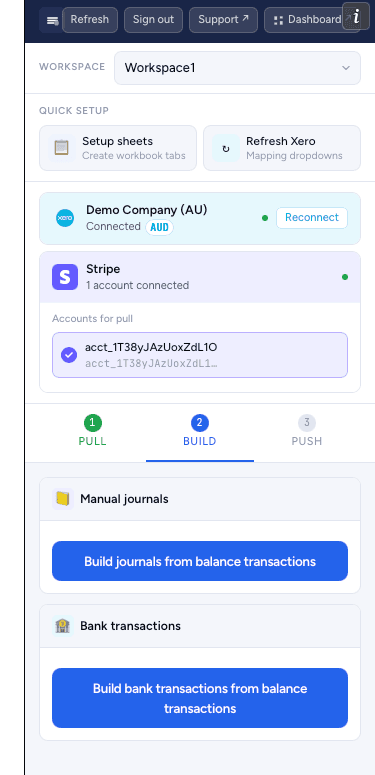
The Build tab reads from Stripe_Balance_Transactions and your Account_Mappings to generate two types of Xero entries. Every account-code, tax-type and tracking value is written as an INDEX/MATCH formula against Account_Mappings, so editing a mapping flows through to all built rows on the next refresh. Bank-transaction contacts come from =Account_Mappings!$B$11.
This generates rows on the Xero_Journals sheet — one signed line per Stripe object type per day (charges, refunds, fees) plus the matching clearing-line pair. Tax is applied INCLUSIVE via the Tax Type column, so no separate GST line is needed.
This generates rows on Xero_Bank_Transaction — one RECEIVE row per Stripe payout. The bank account references your stripe_payout_bank mapping and the offset account references stripe_clearing.
All generated rows are plain Excel data — you can edit, reorder, add rows, or apply your own formulas. The add-in reads whatever is in the range at push time. If account codes need adjustment, update Account_Mappings — formulas recalculate automatically.
Rebuilding is safe. If you rebuild after adjusting mappings, the build overwrites the generated rows. Rows that have already been pushed (marked with a Xero ID in column I for journals or column H for bank transactions) are automatically skipped — be careful not to manually overwrite pushed rows you need to keep as audit trail.
Xero_Journals sheet structure (10 columns, A–J)
The add-in writes formulas to columns A–H. Columns I (Xero ID) and J (Status) are populated by the Push step.
| Col A — Date | Col B — Narration | Col C — Account Code | Col D — Description | Col E — Gross Amount | Col F — Tax Type | Col G — Tracking Name 1 | Col H — Tracking Option 1 | Col I — Xero ID | Col J — Status |
|---|---|---|---|---|---|---|---|---|---|
| 2026-05-15 | Stripe posting — 2026-05-15 | 200 | charge | 12,840.00 | OUTPUT2 | ||||
| 2026-05-15 | Stripe posting — 2026-05-15 | 855 | charge clearing | -12,840.00 | NONE | ||||
| 2026-05-15 | Stripe posting — 2026-05-15 | 404 | fee | 372.36 | NONE | ||||
| 2026-05-15 | Stripe posting — 2026-05-15 | 855 | fee clearing | -372.36 | NONE | ||||
| … additional date rows below … | |||||||||
Single signed Gross Amount column. Unlike a traditional ledger, the sheet uses a single Gross Amount (column E) — positive for debits to the account in column C, negative for credits. Xero splits GST automatically when the Tax Type in column F is set and the line amount is inclusive.
Xero_Bank_Transaction sheet structure (9 columns, A–I)
The add-in writes columns A–G. Column H (Xero ID) and I (Status) are populated by the Push step.Type is always RECEIVE; Contact is the formula =Account_Mappings!$B$11.
| Col A — Date | Col B — Type | Col C — Contact | Col D — Bank Account | Col E — Reference | Col F — Account Code | Col G — Amount | Col H — Xero ID | Col I — Status |
|---|---|---|---|---|---|---|---|---|
| 2026-05-30 | RECEIVE | Stripe Payments Australia Pty Ltd | 120 | po_3Qz1 | 855 | 12,467.64 | ||
| 2026-05-23 | RECEIVE | Stripe Payments Australia Pty Ltd | 120 | po_3Qy8 | 855 | 8,943.40 |
Toggle between 📒 Manual journals and 🏦 Bank transactions using the segmented switch at the top of the Push tab. Push each type separately.
The Read range field defaults to Xero_Journals!A2:J500 for journals and Xero_Bank_Transaction!A2:I500 for bank transactions. Adjust if you renamed sheets or moved data. The value is remembered per workspace.
Select Draft to post journals as draft entries in Xero — you can review and approve them in Xero before they hit the ledger. Select Posted to post directly. Your workspace settings on the dashboard may restrict this to Draft only. Bank transactions are always posted as AUTHORISED Receive Money.
The add-in sends each row to the Xero API. A progress indicator shows while rows are being processed. Do not close Excel during this step.
After a successful push, the Xero ID and Status columns are updated: I (Xero ID) and J (Status) for journals; H (Xero ID) and I (Status) for bank transactions. On any subsequent push, rows showing a Xero ID are automatically skipped — preventing duplicate entries.
Review before you push. Once a manual journal is posted (not draft) in Xero, it creates ledger entries that affect your financial reports and BAS. Always review journal rows in Excel before posting. If you push incorrect entries, you will need to void or delete them manually in Xero.
| A — Date | B — Narration | C — Account | D — Description | E — Gross | F — Tax | G — Tracking Name | H — Tracking Option | I — Xero ID | J — Status |
|---|---|---|---|---|---|---|---|---|---|
| 2026-05-15 | STRIPE-05-15 | 200 | charge | 12,840.00 | OUTPUT2 | mj_3Qz1abc | ✓ pushed | ||
| 2026-05-15 | STRIPE-05-15 | 855 | charge clearing | -12,840.00 | NONE | mj_3Qz1abc | ✓ pushed | ||
| 2026-05-16 | STRIPE-05-16 | 200 | charge | 4,200.00 | OUTPUT2 | pending | |||
| 2026-05-16 | STRIPE-05-16 | 855 | charge clearing | -4,200.00 | NONE | pending |
Not accounting advice. The treatment described here is a common approach for Xero-based businesses using Stripe in Australia (AUD, GST-registered). Your specific circumstances may require a different approach. Consult your accountant or registered tax agent.
The core problem Silkview Connect solves
Stripe pays out a net amount to your bank — after deducting processing fees. But in Xero you need to record:
- Gross revenue (including GST) on the date each charge occurred
- Stripe processing fees as a separate expense
- GST on income split out correctly for your BAS
- The net payout matching exactly what arrived at your bank
Silkview Connect handles this using the clearing account method — the industry standard approach recommended by Xero-certified accountants.
The clearing account method — overview
occurs
Account (Xero)
balance sheet
account (Xero)
on charge date
(net amount)
(Xero)
Account clears
balance at period end
Step 1 — Revenue journal (per day, from Build)
For each day in your date range, Silkview Connect builds a manual journal in Xero that records gross revenue and Stripe fees. The GST is handled automatically by Xero when you set the correct Tax Type on the revenue line — you do not add a separate GST line.
The illustration below uses traditional debit/credit columns for clarity. In Xero_Journals the same entries are represented as a single signed Gross Amount column — positive amounts behave like debits, negative amounts like credits.
| Account code | Account name | Description | Tax type | Debit | Credit |
|---|---|---|---|---|---|
| 855 | Stripe Clearing Account | Gross Stripe charges — 15 May | NONE | $12,840.00 | |
| 200 | Sales Revenue | Stripe charges — 15 May | OUTPUT2 ← GST split by Xero | $12,840.00 | |
| 404 | Bank Charges | Stripe fees — 15 May | NONE | $372.36 | |
| 855 | Stripe Clearing Account | Stripe fees offset | NONE | $372.36 | |
| Totals (must balance) | $13,212.36 | $13,212.36 | |||
GST treatment: Stripe charges your customers an amount that may or may not include GST, depending on your Stripe settings. Silkview Connect uses LineAmountTypes = INCLUSIVE — meaning the amount you enter is the gross (GST-inclusive) figure. Xero splits out the GST portion automatically. Verify your Stripe checkout is configured to collect GST at 10% for Australian customers.
Step 2 — Refund journal (included in daily journal if refunds exist)
Refunds reverse the revenue and adjust the clearing account. They appear on the date the refund was created in Stripe, not the original charge date.
| Account | Account name | Description | Tax type | Debit | Credit |
|---|---|---|---|---|---|
| 200 | Sales Revenue | Stripe refund — 15 May | OUTPUT2 | $75.00 | |
| 855 | Stripe Clearing Account | Clearing — refund | NONE | $75.00 |
Step 3 — Bank transaction (per payout, from Build)
When Stripe pays out to your bank, it sends the net amount — gross charges minus fees minus refunds accumulated since the last payout. Silkview Connect creates a Receive Money bank transaction in Xero for this payout. This is what reconciles against your bank feed.
| Bank account | Reference | Contact | Amount | Offset account | Tax |
|---|---|---|---|---|---|
| 120 — Business Cheque | po_3Qz1 | Stripe Payments Australia Pty Ltd | $12,467.64 | 855 — Stripe Clearing | NONE |
How the Stripe Clearing Account reconciles to zero
At the end of each month, the Stripe Clearing Account balance should equal zero (or the balance of unpaid-out charges if there are pending payouts). Here's the maths:
| Movement | Entry type | Account | DR | CR |
|---|---|---|---|---|
| Gross charges (revenue journals) | Manual journal | 855 Clearing | $12,840.00 | |
| Stripe fees (revenue journals) | Manual journal | 855 Clearing | $372.36 | |
| Refunds (revenue journals) | Manual journal | 855 Clearing | $75.00 | |
| Net payout to bank | Bank transaction | 855 Clearing | $12,392.64 | |
| Clearing account balance | $12,840.00 | $12,840.00 → $0.00 | ||
If the clearing account doesn't zero: A non-zero balance usually means either (a) a payout is pending and will clear next period, or (b) there's a missing or incorrect entry. Check that all payouts in the period have corresponding bank transactions, and that refund amounts match between Stripe and your journals.
What Xero sees — end state
- Profit & Loss: Revenue is recognised on charge date (not payout date) — correct for accrual accounting. Stripe fees appear as a separate bank charge expense line.
- GST / BAS: GST on income is correctly recorded on charge date via the OUTPUT2 tax type on your revenue journal lines.
- Bank reconciliation: The bank transaction (Receive Money) matches the net payout amount that arrives from Stripe, so Xero's bank feed auto-matches it.
- Balance sheet: The Stripe Clearing Account (current asset) holds in-transit Stripe funds. It should clear to zero at month end.
Connection and refresh issues
- After making changes in the dashboard (changing connections, team, or billing), click Refresh in the add-in header to reload workspace and connection state without restarting Excel.
- Xero shows "reconnect required" — Xero OAuth tokens expire every 30 minutes (access token) but refresh automatically. If the refresh token expires (after 60 days of inactivity), you need to reconnect. Click Reconnect in the task pane or dashboard.
- Stripe connection dropped — This can happen if you revoked access in Stripe's dashboard. Reconnect from the task pane by clicking the Stripe connection card.
Pull issues
- No rows returned — Check that your date range contains actual transactions. Stripe returns transactions in UTC — a transaction on "1 May" in Sydney may appear on "30 April" UTC. Try extending your date range by one day on each end.
- Free plan row limit hit — The Free plan returns a maximum of 100 rows per pull. Upgrade to Pro or Firm for 2,000 rows. Narrow your date range to stay under 100 rows on the Free plan.
- Currency mismatch — On Pro/Firm only transactions in your Xero organisation's base currency (e.g. AUD) are returned. Multi-currency support in v1 is limited.
Build issues
- Missing account codes in dropdowns — Click Refresh Xero in Quick setup to reload the chart of accounts, tax rates, tracking categories, and contacts from Xero. This is required after adding new accounts in Xero.
- Journals don't balance / formulas show #N/A — Check that all five Account_Mappings rows (
charge,refund,fee,stripe_clearing,stripe_payout_bank) have account codes filled in, and that the Bank Transfer Contact in row 11 is set. - Unexpected amounts — Stripe amounts are in cents in their API; Silkview Connect divides by 100 for display. If you see amounts that look ×100, contact support — this is a data conversion issue.
Push issues
- "Account not found" error — The account code in your journal rows doesn't exist in your Xero organisation. Check Account_Mappings and ensure the codes match exactly (Xero account codes are case-sensitive).
- "Tax rate not found" error — The Tax Type value in your rows must match Xero's exact tax rate code for your region (e.g.
OUTPUT2for GST on income in Australia). Refresh Xero dropdowns and re-check Account_Mappings. - Duplicate entries in Xero — Rows that show a Xero ID in column I (journals) or column H (bank transactions) are skipped automatically. If you see duplicates in Xero, you may have pushed the same rows from two different workbooks. Check the Xero ID column before pushing. Delete the duplicates manually in Xero.
- Push fails partway through — The Status column shows which rows succeeded (Xero ID) and which failed (error message). Rows that failed can be pushed again — the add-in will skip already-pushed rows automatically.
- Trial expired / billing blocked — If your trial ended or a payment failed, Xero push is disabled. A banner in the task pane links to the dashboard billing page. Update your payment details to restore push access immediately.
Found a bug or have feedback? Send product feedback (30 seconds) → A pre-filled email opens in your mail client — just describe what you were doing and what happened.
Getting help
For issues not covered here:
- Email admin@silkview.org with your account email, workspace name, and a description of the issue
- Sign in at silkview.org/auth/login and use the in-dashboard support chat (Firm plan)
- Include a screenshot of any error message shown in the task pane or status column
Response times: Support emails are answered within 1 business day (AEST) for Pro and Firm plans, and within 3 business days for Free accounts.